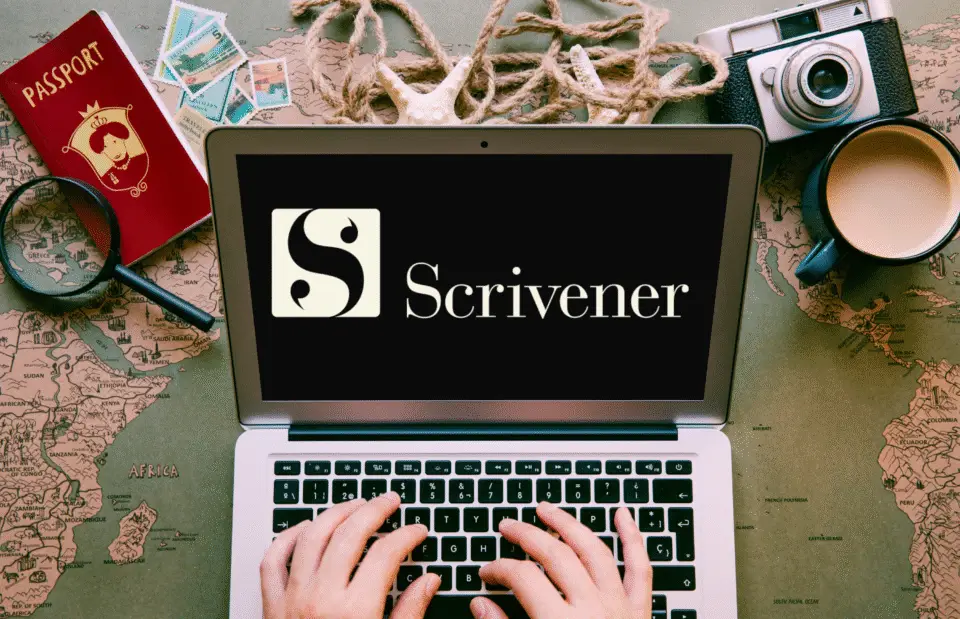
Once you start writing on your travels, you’ll notice that story ideas turn from a dry well into a waterfall. For me, Scrivener has been the best writing software for novels to manage that flood of inspiration and bring structure to my fantasy worldbuilding process. When a bunch of Word documents or scattered notebooks no longer suffice, the right writing tools become your key to turning creative chaos into a real story (don’t worry, that chaos is a good thing!). In this review, I’ll share how Scrivener has become my anchor as a full-time travelling writer and how it’s helped me shape a fantasy world inspired by the Australian outback.
What exactly is Scrivener?
Before diving deeper into why it’s the best writing software for novels, let’s start with the basics. Scrivener, by Literature & Latte, is a powerful writing tool for authors, novelists and screenwriters who have a broad vision for their story projects. It’s known for helping writers organise complex stories, from fantasy epics and travel memoirs to research-heavy nonfiction. Unlike Word or Google Docs, Scrivener lets you break your manuscript into smaller, manageable sections, so you can rearrange chapters, track character arcs, and add notes without losing sight of the bigger picture.
Not only the story, but also all your worldbuilding notes, maps and story outlines can live side by side with your manuscript. You can label chapters, link them to characters, locations and specific descriptions. You can keep everything from research files to visual inspiration in one project and easily find the linking ideas. Scrivener gives you the tools to shape, refine, and expand your creative world, wherever your journey takes you.
Why Scrivener is the best writing software for novels and travelling writers
For anyone writing fiction while exploring the world, Scrivener stands out as the best writing software for novels because it adapts to a creative lifestyle. Writing a novel can be a messy process, and travel can add some extra chaos to this mix. Pages pile up, notes get lost, and you’re scrolling endlessly to find that one idea you jotted down weeks ago. If you’re like me, you might have tried to organise your ideas in various Word documents. Think about separate documents for character profiles, world building, and story plot while using an outline in the sidebar. Thinking you’re smart about it. Yet, still, as your story grows, so do your documents.
Scrivener, on the other hand, was designed for storytellers. It lets you organise your chapters, characters, and worldbuilding notes in one intuitive workspace. As you continue your creative journey, you can add more to your story world, step by step, until you start seeing the bigger picture.
Can Scrivener be used offline while travelling?
Absolutely! One of the things I love most about Scrivener is that it’s one of the best offline writing tools. Whether I’m writing in a remote part of Western Australia or on a flight between continents, my entire fantasy world travels with me. Once I reconnect to WiFi, my project backs up to the iCloud (you can also use Dropbox), and everything stays safely in sync. For writers who don’t always have internet access, Scrivener offers a lot of freedom to write anywhere.
Is Scrivener a one-time payment?
That’s another yes! And also another reason I love it. I paid for my subscription years ago, and I’m using it for life. Even after I upgraded to a new laptop (following the breakdown of my old one), I could re-download the program from the App Store without any additional cost. It has no recurring fees and does what it promises: it helps you build your story.
How I use Scrivener to build my fantasy world while travelling
Scrivener became my software writing tool years ago when I was still working a 9-to-5 job in the Netherlands. With a shelf full of notebooks and about 20 Word documents holding my fantasy world together, I knew I had to do something about it. My best friend recommended Scrivener as a novel writing software tool, and it changed my writing life! It wasn’t until I started copying all my notes into Scrivener that I saw my fantasy world, story and characters all coming together.
The real magic happened when I started using Scrivener during my creative adventures in Australia and further shaped my fantasy world and characters through real-life experience. In every place I visited, I was able to revisit specific story world elements inspired by those locations. The nitty-gritty details I added made it feel more real and alive. Scrivener was my personalised fantasy worldbuilding template. Now, together with my laptop, it has become my portable creative home. Wherever I go now, I open my laptop, and my entire fantasy world is just right there.
Binder & Research sections
I use the Binder section in Scrivener to structure my story. Each folder represents a part of my fantasy world, including its regions, culture, myths, and history. I often link each of those sections to my story draft and specific scenes, so I can easily retrieve the correct information in one click as I’m writing. The Research section provides a space to collect real-world inspiration in the background of the actual worldbuilding. You can add photos of landscapes, cultural notes, or stories of local legends that could make it into your future character profiles.
The Corkboard view
The Corkboard view is another feature I love to use. The little postcards allow me to rearrange snippets and scene ideas until they form the actual story. The moment I started to see all these elements coming together, the story was already there. I only still needed to connect the dots. After I’d copied all my worldbuilding notes into Scrivener, I finished my first manuscript in four months.
4 Scrivener tips for travelling writers
Once you’ve discovered why Scrivener is the best writing software for novels and storytellers on the move, the next step is learning how to make it work for your creative lifestyle. Whether you’re writing from a plane seat or a hammock by the sea, these simple tips will help you keep your stories safe and organised wherever you are.
1. Sync your projects before you go offline
Before heading off-grid, make sure the Scrivener project is backed up to Dropbox, iCloud, or an external drive. Believe me, it’s a lifesaver! When my old laptop broke down, I retrieved my entire Scrivener project in minutes on the new one, and I could continue where I’d left off. Always make sure to save and close the app before you shut down your computer!
2. Create folders for each location or story idea
If travel constantly inspires new storylines, create separate folders in the Binder for each destination or idea. If you have an entirely new story idea while you’re doing groceries in the local supermarket (true story!), you can also easily make a new project. It’s a fantastic way to organise fragments, notes and scene sketches before they grow into chapters.
3. Use Corkboard to track your journey
Apart from plotting, you can use the Corkboard as a travel diary. Add index cards for places you visit, sensory details you notice, or snippets of conversations that could one day spark a story twist.
4. Turn travel experience into story research
Use the Research section to store photos, articles, or cultural notes from your journey. I like to keep that real-world inspiration alongside my fictional universe without having it mixed up.
Writing fiction from anywhere
Scrivener allows me to open my laptop and write novels on my creative adventures. My story world expands as I move from place to place, recreating a fantasy world inspired by the Australian outback. Especially for complex fantasy worlds with rich histories, a vast character cast and series potential, Scrivener becomes your new best friend. If you’re searching for the best writing software for novels to accompany your storytelling adventure, Scrivener truly earns that title.
Read More about Scrivener on Literature & Latte’s own blog. There’s so much more to discover, and they share lots of extra information on the program’s features.
This post contains an affiliate link. If you buy something using my links, I might earn a small commission. You don’t pay anything extra for this. I only share products I truly love and use on my own creative adventures.